
Bodyper guides
Log a workout without an internet connection
A gym with poor reception should not interrupt your workout. Bodyper saves core training changes locally so you can keep recording your session without waiting for a network response.
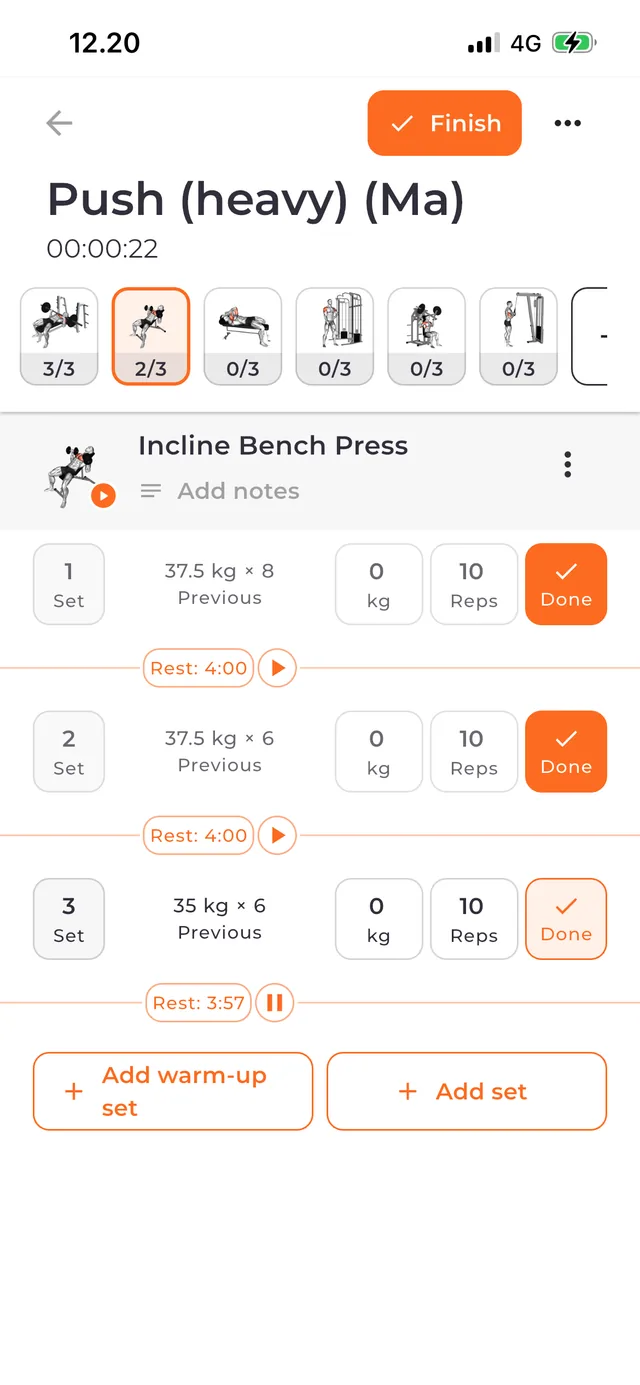
Prepare what you need before training
Check that your program and the exercises you want are available on the phone. Locally available exercises, templates and history remain usable without a connection.
Streaming a new exercise video, signing in and refreshing account data still require the network. Offline training does not mean every online service or media file is downloaded.
Record each completed set
Start a workout, enter your result and confirm the set. Continue through your exercises and use the rest timer where helpful. Recording a set commits it locally before the app confirms the change.
Enter the result you actually performed. Notes and explicit corrections help keep your training record understandable when a session differs from the original plan.
Resume instead of starting again
Your active workout is designed to survive the app being closed. Reopen Bodyper and resume the active session rather than creating a replacement workout for the same sets.
Keep the app installed and its local data intact while changes are unsynced. Removing the app or clearing local storage can remove records that exist only on the phone.
Review saved history and reconnect
Complete the workout locally and view the saved session in history. Your locally available history and progress remain accessible offline.
With an account and cloud sync enabled, saved work synchronizes when connectivity returns. Check pending or failed sync status before assuming a different device already has the latest session.
Keep exploring
Find exercises and videos for your gym program
Explore 7,500+ exercises in Bodyper. Search by name, filter by equipment and muscles, and play demonstration videos before adding a movement to your program.
Build a gym program you can use every week
Create a gym program in Bodyper, arrange workout days, choose exercises and prepare sets. Start a workout from your plan and keep completed sessions in history.
Understand your workout statistics and progress
See what Bodyper statistics show: training activity, volume, exercise records, muscle distribution, measurements and reports, with longer comparisons in Premium.